Export/Import Tasks
Overview
This page describes how to export and import your scheduled jobs between your various CSI Cloud Dashboards.
Steps to Export Tasks
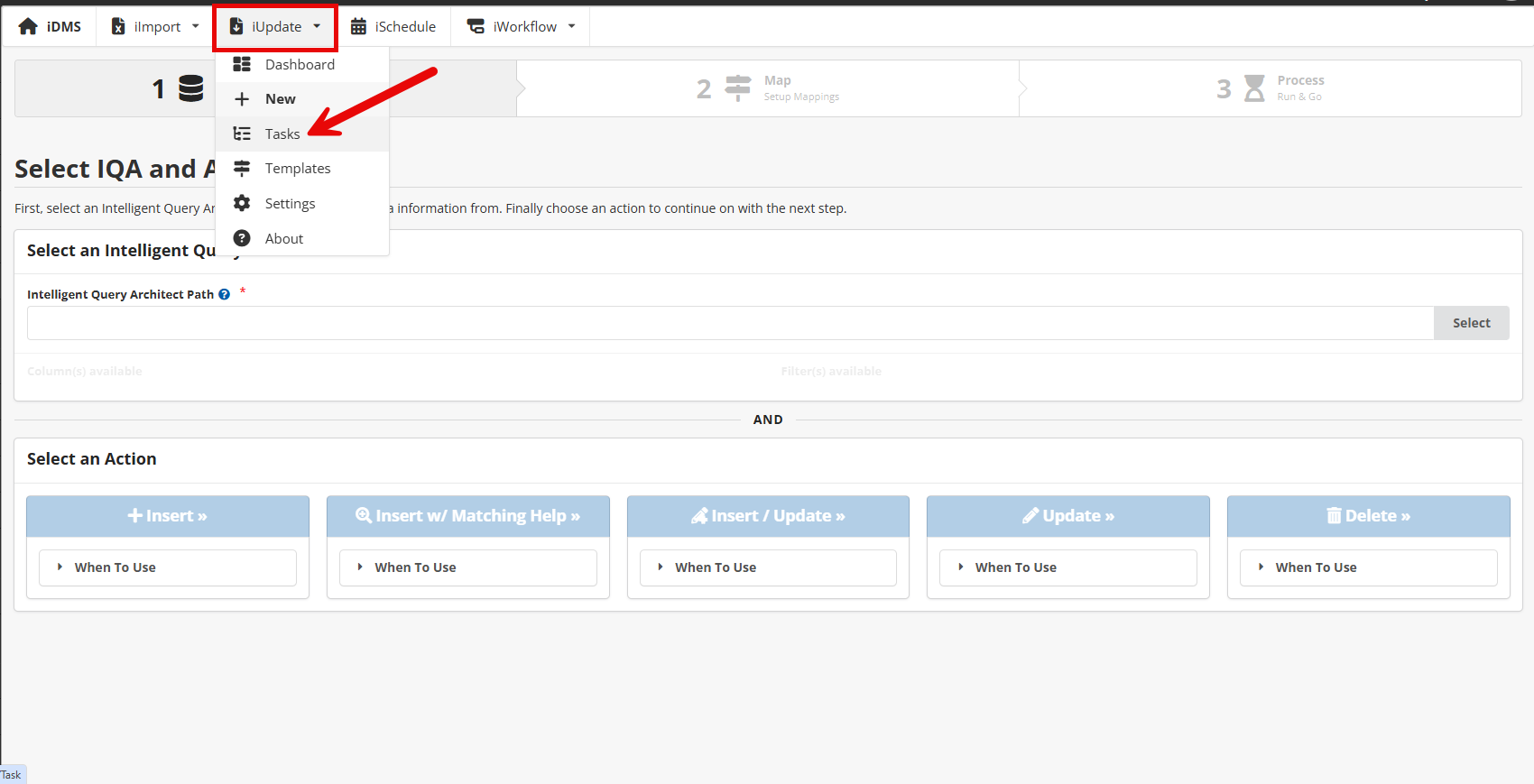
Step 1: Select the iUpdate menu drop-down and navigate to the Tasks menu item.
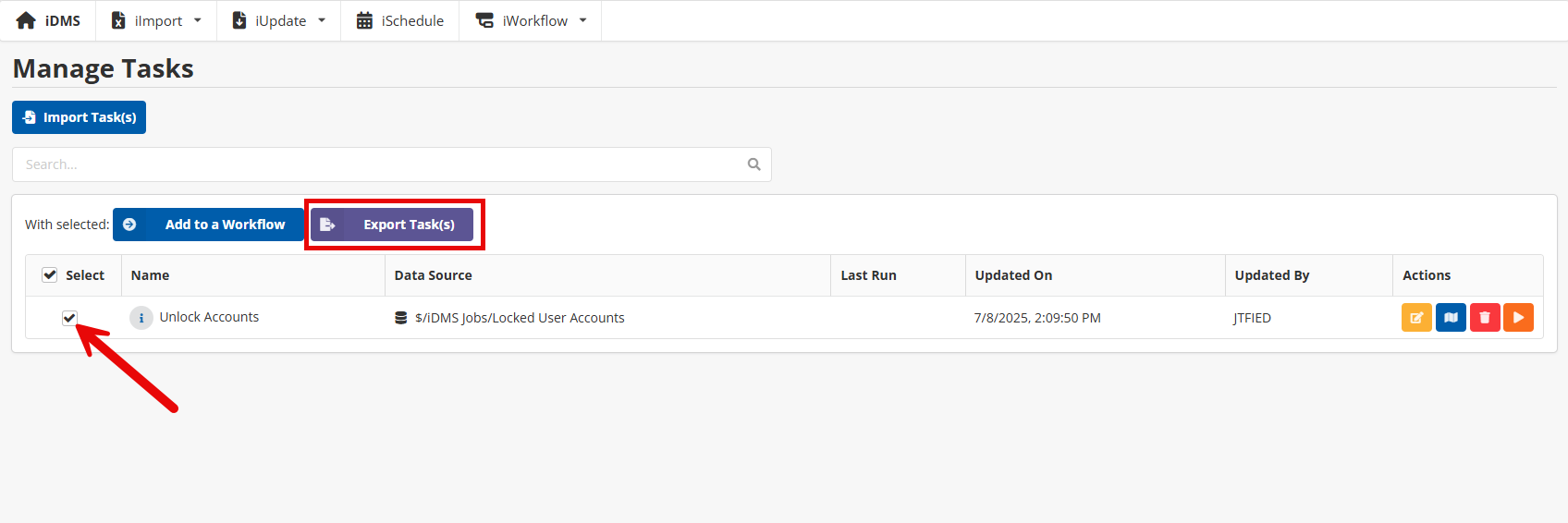
Step 2: Select the Task you wish to export (you can export a single task or multiple). Then, click the Export Tasks button.
Steps to Import Tasks
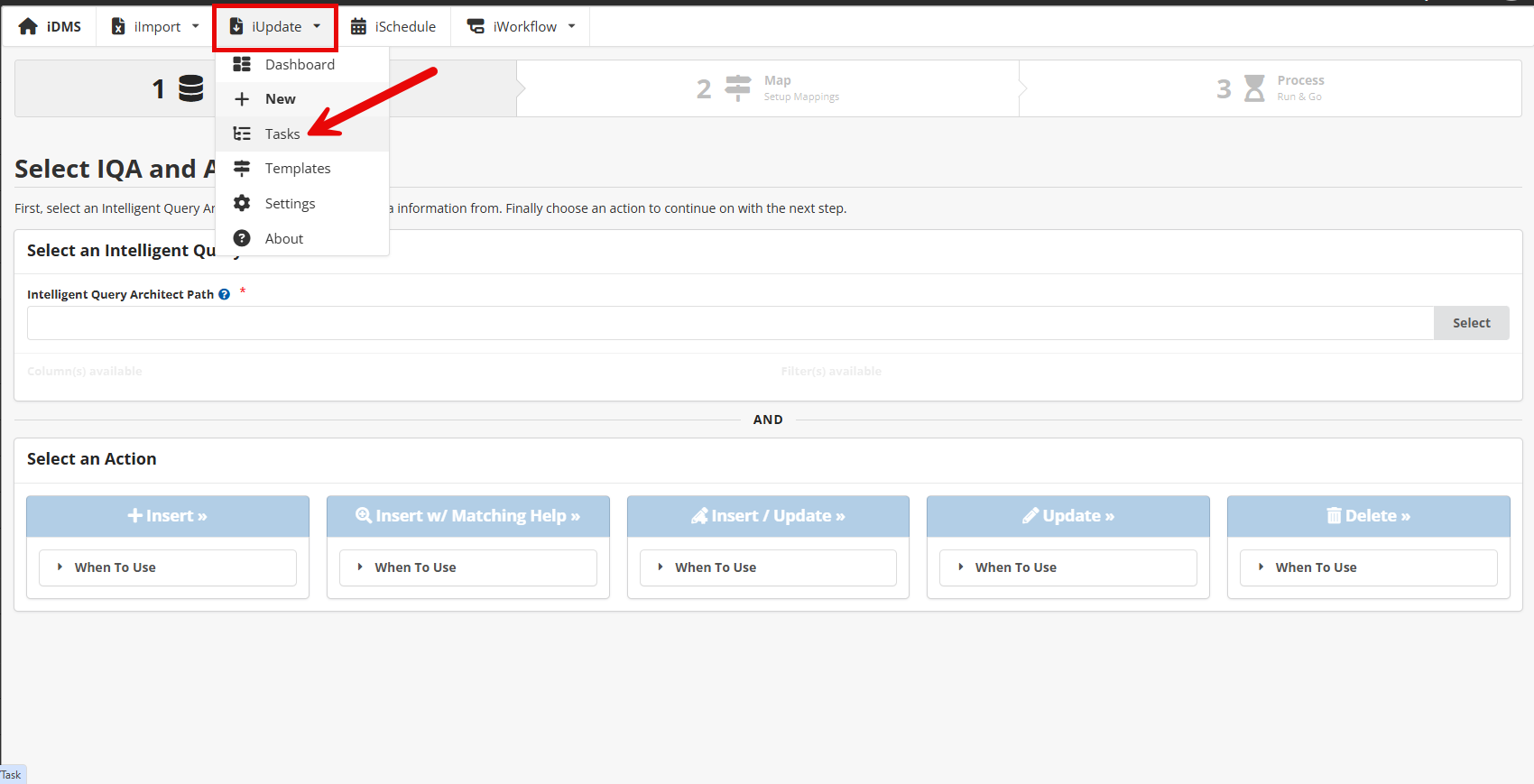
Step 1: Now that you have exported your job(s), it is now ready to import them into your other CSI Cloud Dashboard. You will need to navigate to the iUpdate menu drop-down and click Tasks.
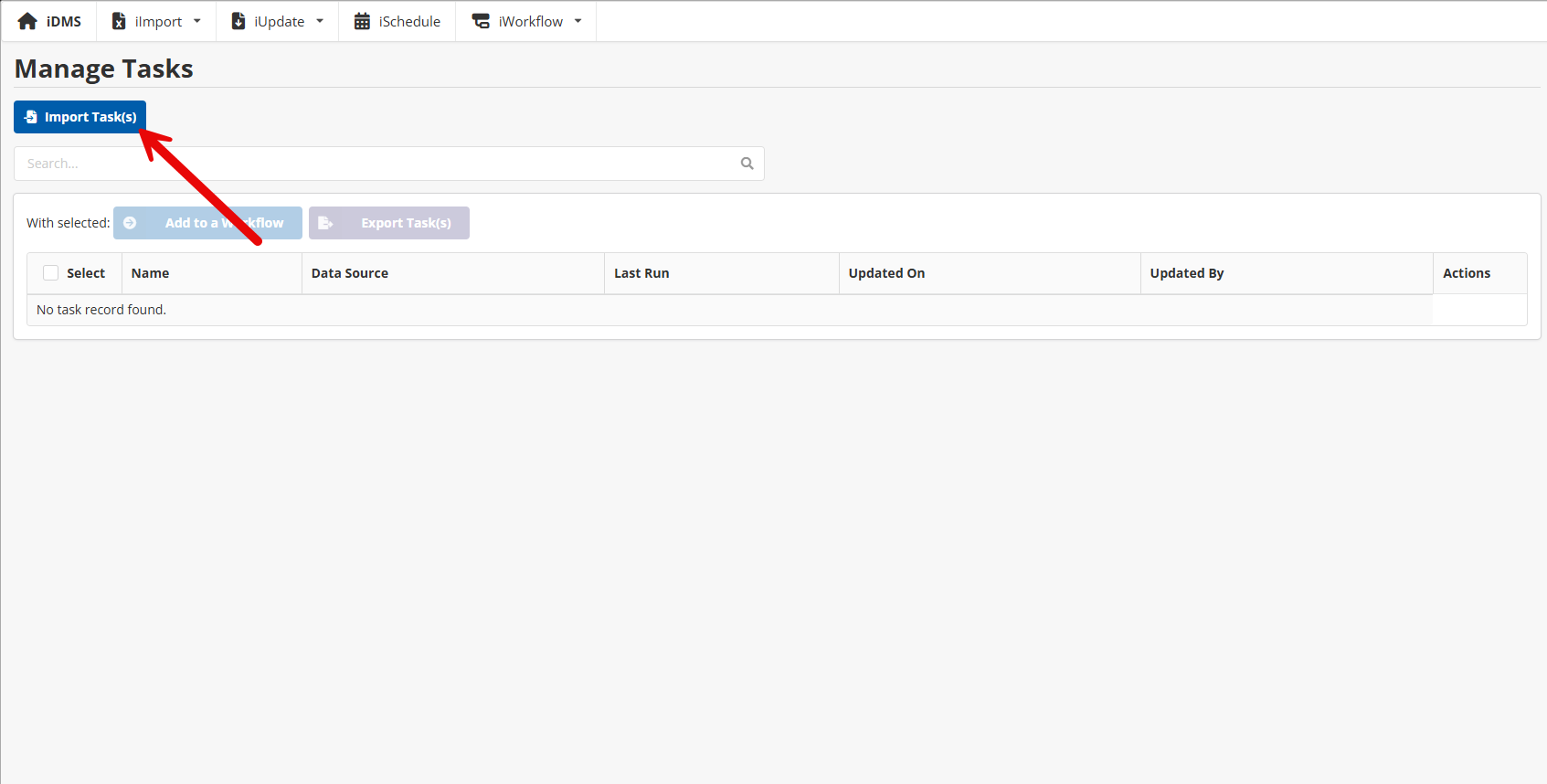
Step 2: Select the Import Task(s) button at the top of the page.
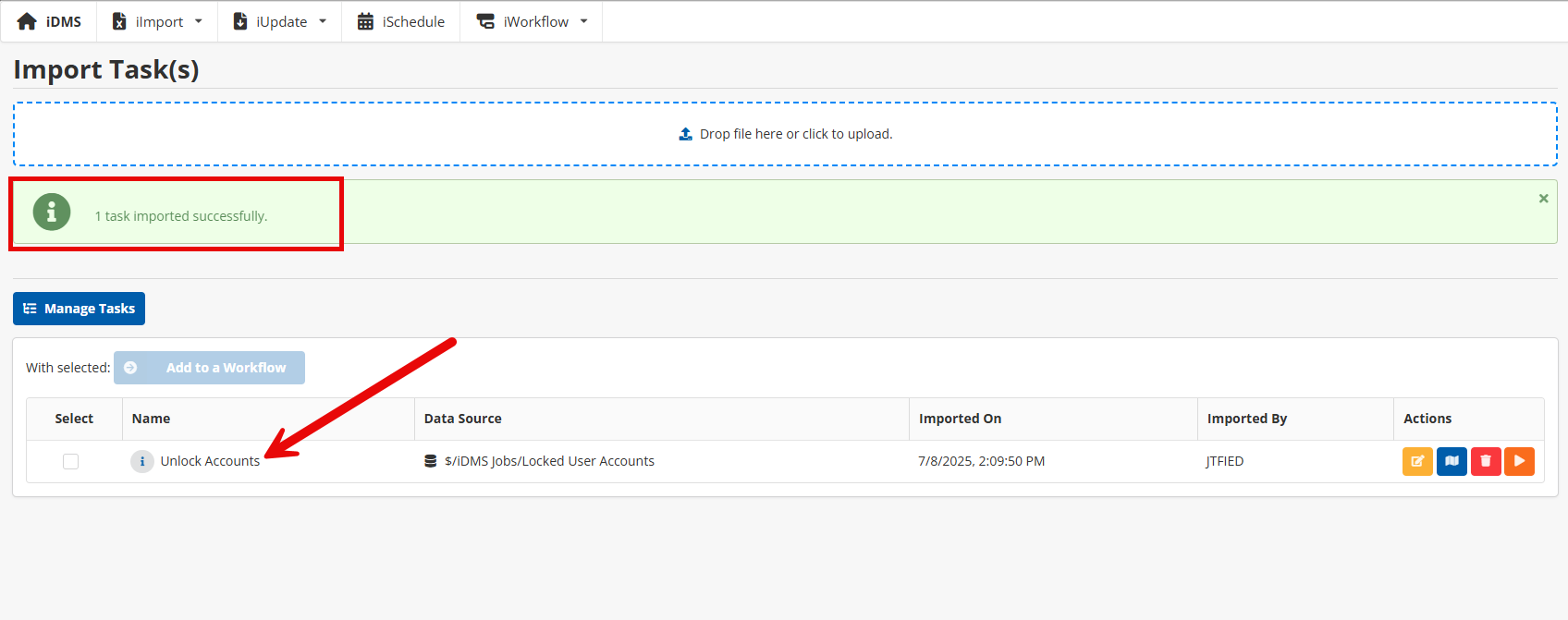
Step 3: Either drag and drop the file in the dotted box or click and select the downloaded Task file. If successful, you will see the below message.
If unsuccessful, you will see the below message along with the error.
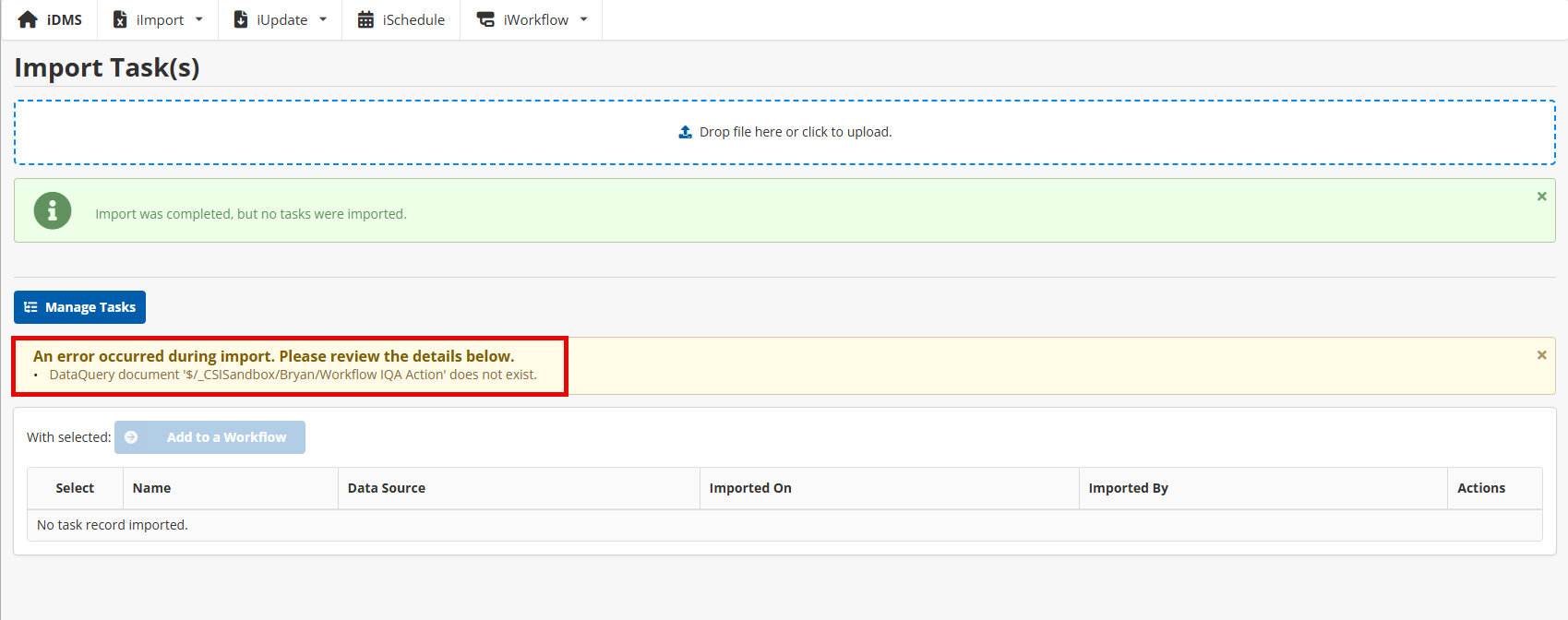
Step 4: If successful, your job has been added to your list of tasks, and you are all set 🙂 If unsuccessful, you will need to ensure that the IQA exists in iMIS and retry the import.
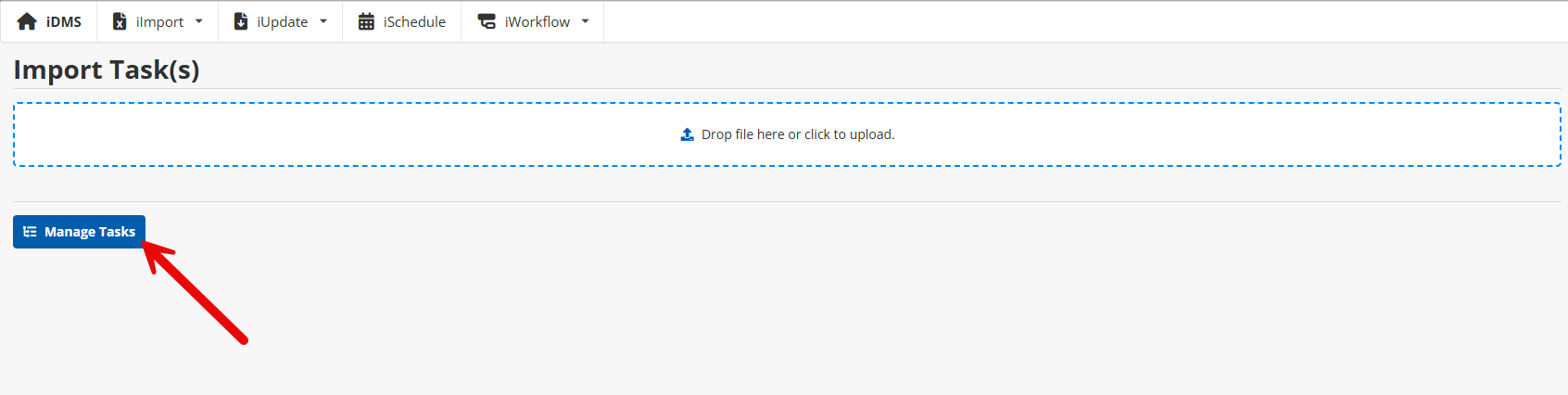
To navigate back to your Tasks, simply select the Manage Tasks button.